
Reset the toner counter for Brother TN243/TN247 cartridges
How to reset the toner counter for brother tn243 tn247 toner cartridges
Brother TN243 / TN247 toner counter reset guide
How to Reset the Toner Counter for Brother TN243 and TN247 Toner Cartridges
If your Brother printer still shows “Replace Toner”, “Toner Low” or “Cartridge Error” after fitting a new TN243 or TN247 toner, the toner counter may not have reset correctly. Use this visual guide to reset the correct colour and cartridge capacity.
For TN243 and TN247
Use this guide for standard and high-capacity Brother colour toner cartridges.
Fixes counter issues
Useful when a new toner is installed but the printer still asks for replacement toner.
Front cover open
The printer must be switched on with the front cover open before starting.
Reset each colour
If you replaced more than one toner, repeat the process for each colour.
Before you start
This reset is only needed if the printer has failed to recognise the new toner counter correctly. Check the cartridge is installed properly before resetting anything.
Use this guide if...
- You have fitted a new Brother TN243 or TN247 toner cartridge.
- The printer still shows “Replace Toner”, “Toner Low” or “Cartridge Error”.
- The cartridge is correctly installed and the correct colour is fitted.
- The printer model is listed in the compatible models section below.
Check this first
- Make sure all orange clips, seals and protective packaging have been removed.
- Make sure the toner cartridge is seated correctly in the drum unit.
- Check that the front cover is fully open before starting the reset sequence.
- If you replaced a drum unit, you may need a drum reset instead of a toner reset.
Helpful tip: The button sequence can take a few attempts. If the reset menu does not appear,
close the cover, reopen it, and try the button press again slowly and carefully.
Compatible Brother printer models
This reset method is intended for the following Brother colour laser printer models.
DCP-L3510CDW
DCP-L3517CDW
DCP-L3550CDW
HL-L3210CW
HL-L3230CDW
HL-L3270CDW
MFC-L3710CW
MFC-L3730CDN
MFC-L3750CDW
MFC-L3770CDW
Not listed? Do not guess. If your Brother printer model is not shown here,
contact us or check our wider Brother toner and drum reset support page before continuing.
Step-by-step toner counter reset
Follow the steps in order. The most important part is selecting the correct colour and cartridge capacity before confirming the reset.
1
Open the front cover
With the new toner cartridge installed, switch the printer on and open the front cover. The display should show a message such as “Cover is Open”.
Keep the front cover open while you perform the reset sequence.

2
Press Back and Cancel together
Press and hold the Back and Cancel buttons together for a couple of seconds. Release both buttons, then immediately press Back again.
This is the step that usually takes a few attempts. If the reset menu does not appear, try again with the front cover still open.
Press Back + Cancel
Release
Press Back again

3
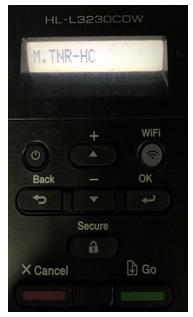
Select the toner reset code
If the button sequence has worked, the screen will change and display a toner reset code such as M.TNR-HC or K.TNR-STD.
Use the ▲ / ▼ buttons to choose the correct code for the toner cartridge you want to reset, then press OK.
K = Black
C = Cyan
M = Magenta
Y = Yellow
4
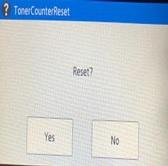
Confirm the reset
After selecting the correct reset code and pressing OK, the printer will ask you to confirm the reset. Choose Yes.
The screen should then show Accepted. You can now close the front cover and try printing again.
5
Check the reset has been accepted
Once the printer shows Accepted, the toner counter has been reset for the selected cartridge. If you have replaced more than one toner cartridge, repeat the same process for each colour.
For example, if you replaced cyan and magenta, reset the cyan code first, then repeat the process and reset the magenta code.

TN243 and TN247 toner reset codes
Choose the reset code that matches the cartridge you have installed. TN247 cartridges are high-capacity cartridges. TN243 cartridges are standard-capacity cartridges.
Cartridge
Colour
Capacity
Reset code shown on printer
TN247BK
Black
High capacity
K.TNR-HC
TN247C
Cyan
High capacity
C.TNR-HC
TN247M
Magenta
High capacity
M.TNR-HC
TN247Y
Yellow
High capacity
Y.TNR-HC
TN243BK
Black
Standard capacity
K.TNR-STD
TN243C
Cyan
Standard capacity
C.TNR-STD
TN243M
Magenta
Standard capacity
M.TNR-STD
TN243Y
Yellow
Standard capacity
Y.TNR-STD
Important: Do not reset the wrong colour or capacity. If you fit a TN247 high-capacity cartridge,
choose the HC code. If you fit a TN243 standard-capacity cartridge, choose the STD code.
Troubleshooting if the reset does not work
If the printer still shows a toner message after the reset, try these checks before returning the cartridge.
The reset menu will not appear
Make sure the front cover is open and the printer is switched on. Press Back and Cancel together, release them, then press Back again. The timing can take several attempts.
I cannot find my cartridge code
Check whether you fitted a TN243 standard cartridge or a TN247 high-capacity cartridge. Then match the first letter to the colour: K, C, M or Y.
The printer still says Replace Toner
Confirm you reset the correct colour and capacity. If you replaced more than one toner, each colour may need to be reset separately.
The printer says Drum or Drum End Soon
That is a different counter. Brother laser printers often use separate toner cartridges and drum units, so a drum message usually needs a drum reset or replacement, not a toner reset.
There is a cartridge error
Remove the toner and drum assembly, check the toner is seated correctly in the drum unit, then reinstall it firmly. Also check all seals and protective clips have been removed.
I replaced several colours
Reset one colour at a time. For example, reset C.TNR-HC for cyan, then repeat the process and reset M.TNR-HC for magenta.
Still stuck? Contact us with your printer model, toner code, order number and a photo of the screen message.
This helps us confirm whether the issue is the toner, drum, counter reset or printer.
Need help resetting your Brother toner?
If the reset menu will not appear, the wrong code is showing, or the printer still refuses to print, our customer service team can help you work through the next step.
Call us
01423 701704
Email us
customerservice@cartridgeworld.co.uk
Opening hours
Monday to Friday, 9am–5pm